

Selenium IDE is the most straightforward tool in the Suite. It is a Firefox add-on that quickly creates tests via its record and playback functionality. This segment is similar to QTP and easy to install and learn.
Because of its simplicity, Selenium IDE can only be used as a prototyping tool, not as an overall solution for creating and sustaining complex test suites.
Even though you can use Selenium IDE without prior programming knowledge, at least you must be familiar with HTML, JavaScript, and the DOM. Therefore, an understanding of Javascript will be required. In addition, Selenium IDE supports autocomplete mode when creating tests.
What Are the Components of Selenium IDE?
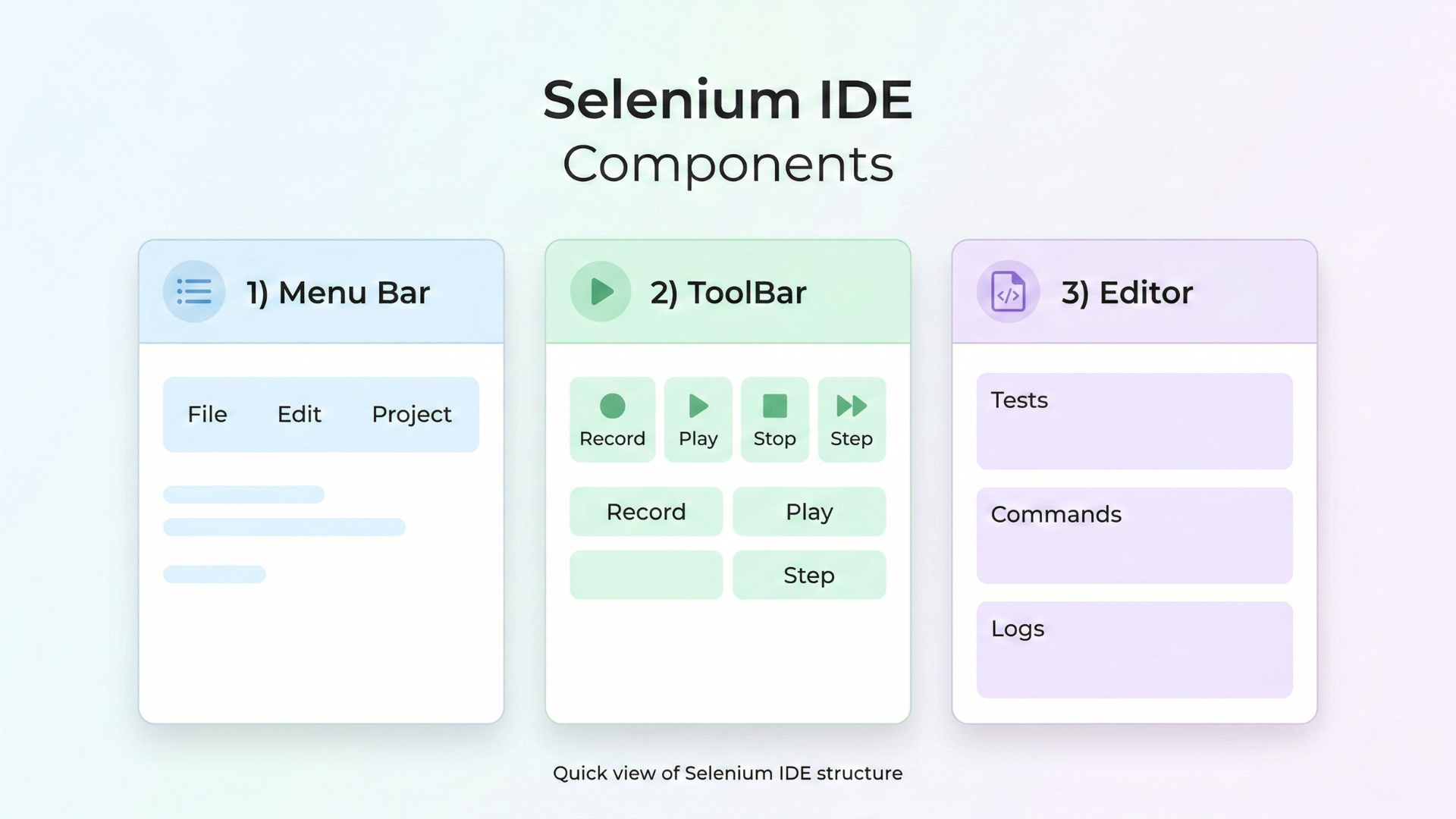
Selenium IDE has three main components: Menu Bar, Toolbar, and Editor. The Menu Bar helps manage projects and settings, the Toolbar allows recording and executing tests, and the Editor is used to create, edit, and debug test cases. Together, they enable quick test automation using a record-and-playback approach.
Key Takeaways
-
Selenium IDE is a beginner-friendly automation tool
-
It includes three core components: Menu Bar, Toolbar, and Editor
-
Best suited for quick test creation and learning automation basics
-
Not ideal for large-scale automation frameworks
-
Acts as a starting point before moving to Selenium WebDriver
Selenium automates browsers – Learn the Introduction to selenium and its components.
Selenium IDE is divided into different components.
Therefore, we have categorized three various components of Selenium IDE, which include:
- Menu Bar
- ToolBar
- Editor
Menu Bar
The typically used menus are the File, Edit, and Options menus.
- File menu contains Test Case and Test Suite options to add, open, save, or export a Test Case or Suite in a language of your preference.
- Edit menu for copying, pasting, deleting, undoing, and selecting operations to edit commands in your Test Case.
- Options menu allows you to change various settings of Selenium IDE. This includes setting the command timeout value, adding user extensions defined by the user to the
- Selenium commands’ base set specifies the language in which Test Cases are saved.
- Help menu is simply the standard Firefox Help menu with only ‘UI-Element Documentation’ unique for Selenium-IDE.
ToolBar
The toolbar has buttons to control Test Case Execution, with a step feature to debug your Test Cases. Furthermore, the toolbar contains modules for managing the execution of your test cases.
- Speed Control Slider: To control the running speed of your Test Cases.
- Run All: To run the complete Test Suite when multiple Test Cases are loaded.
- Run: To run the selected test only. Run and Run all buttons perform the same action if only one test case is loaded.
- Pause/Resume: To stop and restart a running Test Case.
- Step: This runs a Test Case one command at a time, allowing you to ‘step’ through it. This is used for debugging Test Cases.
- TestRunner Mode: Runs the Test Case in a browser loaded with Selenium-Core TestRunner. This button evaluates Test Cases for backward compatibility with TestRunner.
- Apply Rollup Rules: This advanced feature allows repetitive Selenium command sequences to be grouped into one action.
- Record: To record the browser actions of the user.
Editor
You can think of the editor as where all the action happens. It is available in two views:
- Table View
- Source View

Selenium IDE vs Selenium WebDriver
| Feature | Selenium IDE | Selenium WebDriver |
|---|---|---|
| Coding Required | No | Yes |
| Use Case | Beginners & prototyping | Advanced automation |
| Flexibility | Limited | High |
| CI/CD Integration | Basic | Strong |
| Scalability | Low | High |
When Should You Use Selenium IDE?
Use Selenium IDE when:
-
You are new to automation testing
-
You want to quickly record test cases
-
You need to prototype test flows
-
You want to understand basic testing concepts
Table View
- Almost most of the time, Selenium IDE works by using Table View.
- Table view helps to create and modify Selenese commands more quickly.
- Each step is color-coded after every playback.
- To Type the command’s name, allow the “Command” text box to create actions.
- It shows a dropdown list of commands that matches the entry you are currently typing.
- Target is any parameter, i.e., username, password for a command, and Value is the input value for those Targets.
Source View
- It depicts the steps in HTML format.
- It also authorizes you to edit your script like in the Table View.
Features Of Selenium IDE


Selenium IDE has many features, but let’s stick with four significant features.
Packed With Multiple Actions
Selenese is a famous command that runs Selenium IDE without any flaws. It helps the tester or developer to run the command to define the things that need to be taken care of and are primarily necessary for users to test the website in a virtual environment.
It comes up with the most popular and much-needed three significant commands:
- Assertions
- Actions
- Assessors
Plugin Support For Third Party
With the install support, the plugins can be inserted into your Selenium IDE to do volume load tests, upload scripts to a cloud, or any production application monitoring service. Trusted by 4000+ companies worldwide, they have integrated Selenium WebDriver into their offerings, and the same will happen with the Selenium IDE.
Record Test Cases Automatically
Did you know that Selenium IDE records test cases automatically?
With an understanding of web applications or websites, it can automatically record the test cases. There is a possibility to disable the record option for users who do not require that. Commands will be automated when a test script is recorded and inserted depending on the test the developer or tester performs.
Functionality Of In-built Assertion
When test scripts are built via Selenium IDE, users get the option to verify and add asserts to test scripts. Using such commands, users can get to know the properties of web pages adeptly. If the users find or click any element, a text box automatically pops up on the web page, showing a list of verifying and asserting commands. This list expands from time to time as users continue to use Selenium IDE.
Besides all these features, Selenium IDE can also perform,
- Running additional UI components will interact with a web page, and you may encounter different information windows, notifications, alerts, and others.
- Adding conditions to the test scripts to handle extra UI components is relatively easy.
- Running test scripts can execute test cases simultaneously to save testing time.
- Integration into CI you can integrate Selenium testing into your CI process.
- Plugins can be further extended with Selenium IDE features by installing plugins. It is also building plugins that suit your needs comparatively.
- Granular test cases can create exemplary test cases to use common cases for other tests.
- Just like a function or method in programming, it can design your test script structures and does not need to create the same common test steps again.
Why Selenium IDE Still Matters in 2026
While modern tools like Playwright and AI-driven testing frameworks are gaining popularity, Selenium IDE remains a valuable starting point. It helps beginners understand automation concepts quickly and serves as a stepping stone toward advanced tools like Selenium WebDriver.
Closure Thoughts
Selenium is an all-purpose web automation tool that caters to the significant needs of web application automation. In addition to the above context, the direct reason for the popularity of Selenium IDE is its comprehensive coverage and support for different web browsers, programming languages, and OS.
If you’re ready to move beyond basic tools like Selenium IDE and build real-world automation skills, enrolling in a structured Selenium training in chennai can accelerate your journey. With hands-on projects, expert guidance, and exposure to frameworks, CI/CD, and modern testing practices, you can transition from beginner to industry-ready QA professional faster and more confidently.
FAQs
What is Selenium IDE used for?
What are the 3 components of Selenium IDE?
Is Selenium IDE good for beginners?
Can Selenium IDE replace Selenium WebDriver?
Does Selenium IDE support CI/CD?
What are the limitations of Selenium IDE?
When should I use Selenium IDE?
Can Selenium IDE export tests to code?
We Also Provide Training In:
- Advanced Selenium Training
- Playwright Training
- Gen AI Training
- AWS Training
- REST API Training
- Full Stack Training
- Appium Training
- DevOps Training
- JMeter Performance Training
Author’s Bio:


As CEO of TestLeaf, I’m dedicated to transforming software testing by empowering individuals with real-world skills and advanced technology. With 24+ years in software engineering, I lead our mission to shape local talent into global software professionals. Join us in redefining the future of test engineering and making a lasting impact in the tech world.
Babu Manickam
CEO – Testleaf