
Introduction
Selenium Grid is one of the most useful parts of the Selenium suite for teams that need faster execution and broader browser coverage. Instead of running tests one by one on a single machine, Selenium Grid allows automated tests to run in parallel across multiple browsers, machines, and operating systems. This makes it easier to scale automation and reduce test execution time in real-world projects.
Key takeaways
-
Selenium Grid helps run tests in parallel across multiple environments.
-
It is useful for cross-browser and cross-platform validation.
-
Standalone, Classical, and Fully Distributed modes support different levels of complexity.
-
The article needs stronger setup clarity, direct definitions, and troubleshooting guidance to feel like a complete tutorial.
What is Selenium?

Selenium is a fantastic collection of automation tools that can automate user behaviours on a web application. In addition, it serves as an open-source hub project for various tools and technologies that allow for and support web browser automation.
Let’s explore each of the nuances of Selenium Automation Testing in this post by delving into the minutiae of the following issues:
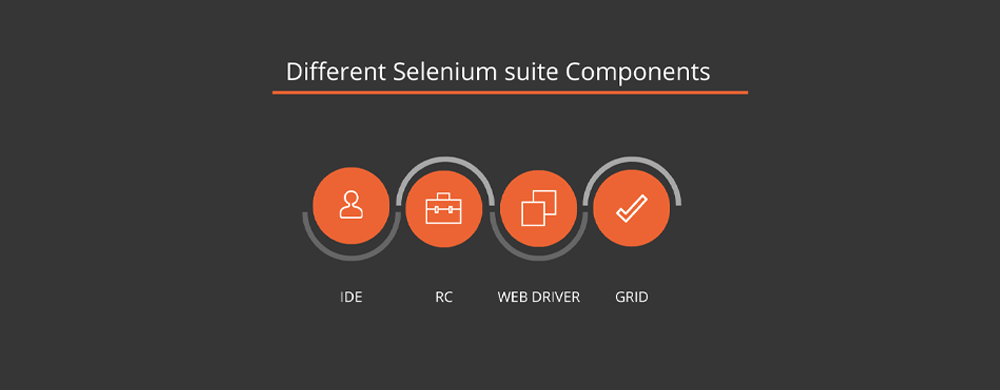
Before getting deep into the topic, let us know about the major components:
- Selenium Grid
- Selenium IDE
- Selenium WebDriver
What is Selenium WebDriver?
Selenium WebDriver is a web automation tool that allows users to test web applications in different browsers. It is an open-source tool that uses web browsers to simulate user interactions with web pages.
It supports various computer languages, including Java, Python, C#, and Ruby, and may be used to automate processes like form completion, button clicks, and text-on-page verification.
It also provides features such as taking screenshots, generating reports, and running tests in parallel.
What is Selenium IDE?
A tool for capturing browser interactions for test cases is selenium IDE. It is simple to download and launch this open-source testing tool; you only need to add it as a component to a browser window like Chrome or Firefox.
You can design specific or intricate test scenarios with the tool. Then, similar to other dev IDEs, you can set breakpoints, pause, and inspect variables when an issue occurs.
Additionally, repetitive testing is made simpler and faster by the ability to reuse your test case inside of another test case.
If and while is examples of conditional statements that Selenium IDE can comprehend. You may broaden and handle additional test cases with this rational approach.
What is Selenium Grid?
An intelligent proxy tester, Selenium Grid, helps make it simple by conducting experiments simultaneously on different machines.
This is accomplished by acting as the hub and transmitting commands too distant internet browser instances.
This hub distributes JSON-formatted test commands to many authorised Grid points.
Another term one must know before getting into the topic is the Selenium grid for cross-browser testing.
Cross-browser testing evaluates a website’s performance across various browsers, such as IE, Chrome, and Firefox.
The capacity of a website or a web-based application to operate across numerous hardware and software and browsers are known as cross-browser portability.
Read our blog to learn How to set up Selenium Grid for Cross-Browser testing.
These are a few technical terms you must know before getting into the topic.
When should you use Selenium Grid?
Perform your tests simultaneously on several computers, software platforms, and websites. By doing this, you can be sure that the application you’re evaluating is compatible with a wide range of browser-operating system combos.
Spend less time running your test suites. For example, you could complete the entire suite around four times faster if you configured Selenium Grid to execute four tests simultaneously.

Advantages & Disadvantages of Selenium Grid
Before getting into the topic, let us look at the advantages and disadvantages of the Selenium Grid.
Advantages of Selenium Grid:
Language support:
One main advantage of Selenium Grid is that it is used in comprehensive languages, i.e., it supports many languages. Therefore, the first and foremost thing that any software testers or developer look into is whether they support the programming language support. This is the main reason why many use Selenium Grid.
The Selenium test framework has a significant advantage in this area because it supports the most well-liked programming languages, including JavaScript, C#, Ruby on Rails, Python, Perl, and others. Furthermore, because they only need to grasp the subtleties of Selenium Grid automation and use it for their project, software developers choose automated Selenium tests.
Framework:
The framework includes Cucumber, and CapyBara, which has Python as its programming language.
NUnit and MsTest, have c# as the programming language.
Robot, PyUnit, and PyTest have Python as the programming language.
It does not require an external browser.
If you want to test on local PCs, Selenium automated testing doesn’t require any additional server investment.
To test cases relating to browser compatibility, the Selenium WebDriver is required.
You can use a “remote machine,” which serves as a Selenium server, to run your tests, whether you wish to undertake complete automated browser testing on your product or choose a more scalable solution like shifting manual browser testing to the Selenium Grid cloud.
Modes of Selenium Grid
 There are three types of modes in Selenium Grid:
✅ Standalone Mode.
✅ Classical Mode.
✅ Fully Distributed Mode.
Standalone Mode: Using the independent mode, you can run a fully complete grid with all components running on a single system.
It is the fastest and most straightforward approach to begin using Selenium Grid.
Classical Mode: Only in this mode do we have nodes and hubs.
Fully Distributed Mode: The entire distributed mode is the recommended configuration for large grids.
The most complicated mode needs you to start each component separately.
These are three modes in Selenium Grid that helps in setting up the Grid.
To learn in detail about the modes, join our selenium training in chennai and have an in-depth understanding of Selenium automation.
Step-by-step process on a complete tutorial of Selenium Grid:
Here is the step-by-step process of setting up Selenium Grid simply.
Step 1:
The first primary step is to run Java. Java helps you to download and keep the files in .jar files.
If you don’t have Java on your personal computer, install the Java download page.
After installing Java, add the path of Java to the environment variable.
Install NET 5.0 if you use c# as your programming language. For Java
Step 2
Make sure to download the chrome webdriver. The webdriver must be a recent version.
After downloading, the location must be added system path.
Step 3:
These are a few steps before installing the Selenium Grid; Now it’s time to install the Selenium Server.
Sometimes, there might be a dialogue box stating it’s unsafe to download the Selenium Server.
But it’s completely normal to download it.
To mark the file as safe in this scenario, you only need to click on Keep immediately.
Now create a folder and move the file; replace the downloaded file’s name.
Selenium Grid runs on port 4444 by default. You should receive successful notifications if the operation is successful.
In this way, you can set up a Selenium Grid in an easy way.
Step 4

To test the entire process, run or create a test you have set up.
Type .NET CLI in the browser and run the test.
Open the file named Program. Cs. First, add the using statements to enable communication between our code and Selenium.
Now in the main, create a chrome option class. In chrome, create a new instance of Remote Webdriver.
Three lines will appear. The first line is the cookies, the second helps you maximise the window, and the third enables you to perform the browser.
This is the process of setting a complete tutorial of Selenium Grid.
Conclusion

By the end of this article, you will have a clear idea about different platforms and browsers.
Selenium is just a solid tool that comes with diverse upgraded versions.
In today’s world of almost limitless combinations of operating systems, websites, screen resolution, and other characteristics, grid testing, a type of testing process, is crucial.
Grid testing is made feasible by the Selenium suite’s Selenium Grid module.
FAQs
What is Selenium Grid?
Selenium Grid is a Selenium component that allows automated tests to run in parallel across multiple browsers, operating systems, and machines.
Why is Selenium Grid used?
Selenium Grid is used to speed up test execution and support cross-browser testing by distributing tests across different environments.
When should you use Selenium Grid?
You should use Selenium Grid when your automation suite takes too long to run on one machine or when you need to test across multiple browsers and platforms.
What are the modes of Selenium Grid?
The main modes of Selenium Grid are Standalone Mode, Classical Mode, and Fully Distributed Mode.
What is the default port for Selenium Grid?
The default port for Selenium Grid is 4444.
Author’s Bio:

As CEO of TestLeaf, I’m dedicated to transforming software testing by empowering individuals with real-world skills and advanced technology. With 24+ years in software engineering, I lead our mission to shape local talent into global software professionals. Join us in redefining the future of test engineering and making a lasting impact in the tech world.
Babu Manickam
CEO – Testleaf