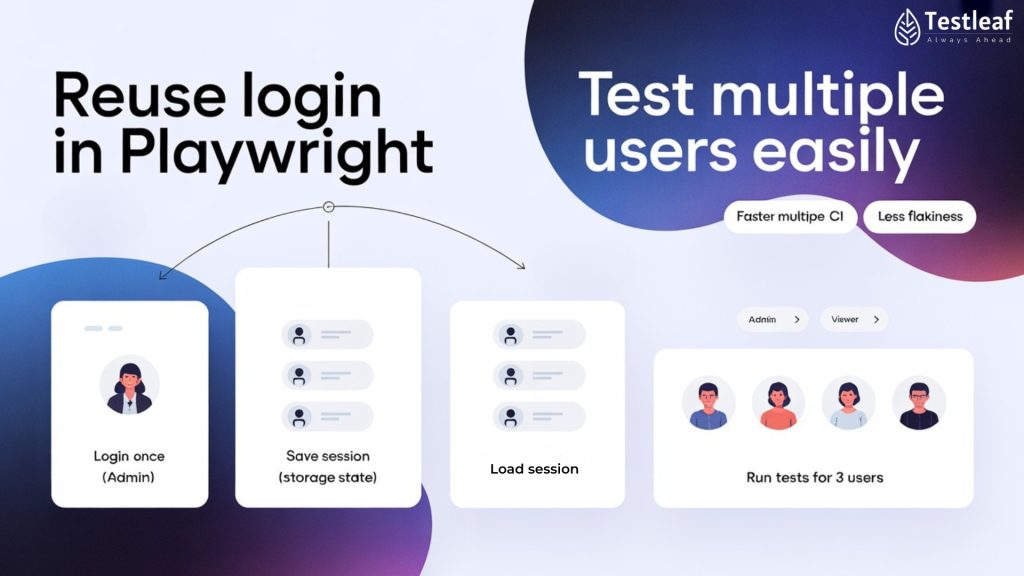
If Selenium’s world is “log in, grab cookies, reuse them,” Playwright takes that idea and bakes it into the framework with a feature called storage state.
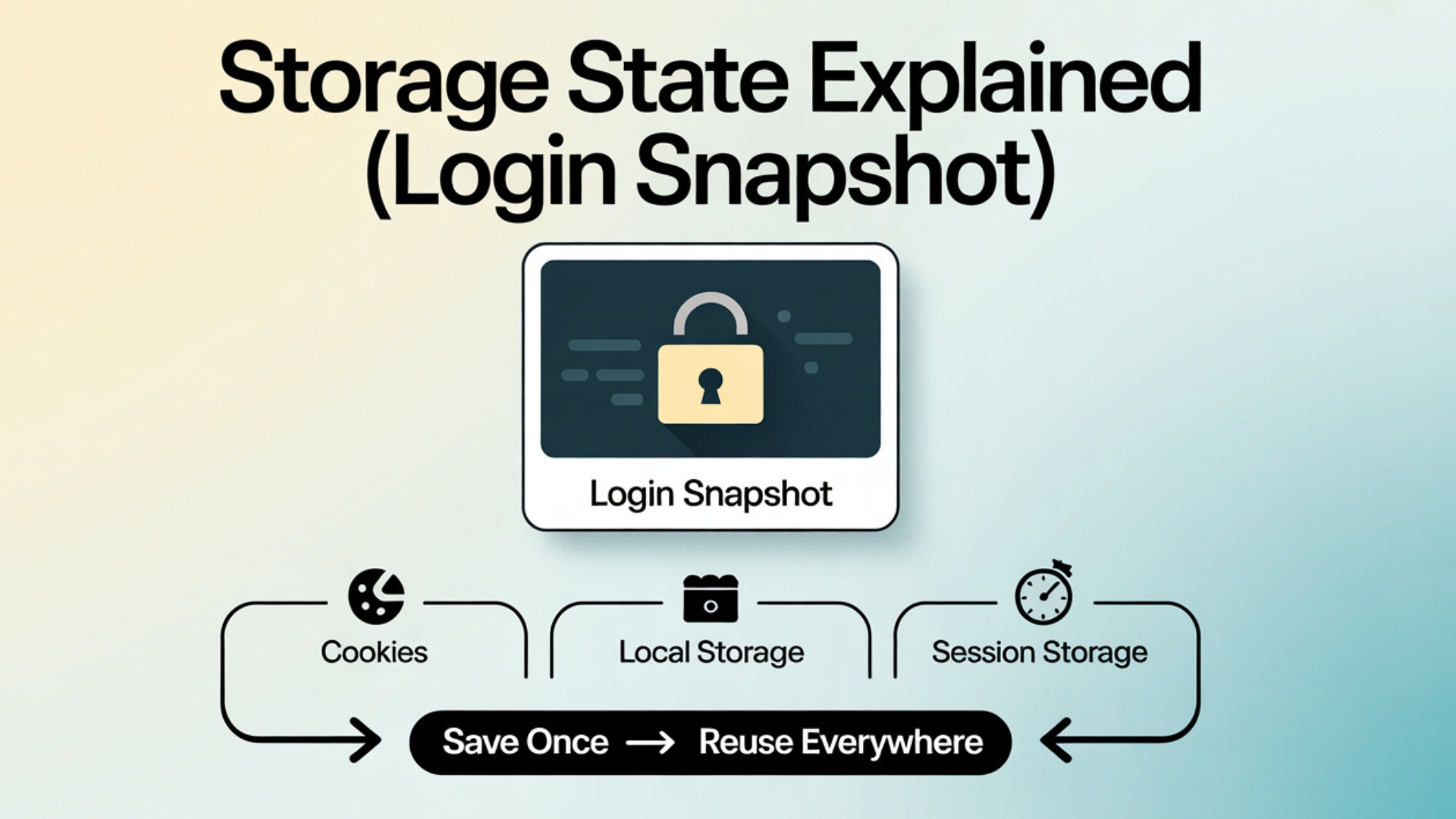
Storage state = a snapshot of:
- Cookies
- Local storage
- Session storage
That represent a logged-in browser.
You can:
- Log in once.
- Save the storage state to a file.
- Reuse that file across many tests and even different browser contexts.
This makes login handling in Playwright fast, clean and ideal for modern CI setups.
1. What is storage state in simple words?
Think of storage state as a “login snapshot”.
You:
- Open browser
- Do full login (SSO, OTP, etc.)
- Tell Playwright: “Please remember this state as auth.json.”
Later, you start tests that say:
“Open browser with the same logged-in state from auth.json.”
No need to log in again.
You Should Also Read: AI & ML Engineer Salary in India 2026
2. Creating a storage state file
In a Playwright test (TypeScript):

import { test } from '@playwright/test';

test('create auth state', async ({ page }) => {

  await page.goto('https://your-app.com/login');


  // Perform full login here (SSO / username/password / OTP / etc.)

  await page.getByLabel('Email').fill('qa@example.com');

  await page.getByLabel('Password').fill('secret');

  await page.getByRole('button', { name: 'Login' }).click();


  // Wait until you are sure login is complete

  await page.waitForURL('**/dashboard');


  // Save current cookies + storage to file

  await page.context().storageState({ path: 'auth/qa-admin.json' });

});
This qa-admin.json becomes your reusable login token.

3. Reusing storage state in tests
In your Playwright config:
import { defineConfig } from '@playwright/test';

export default defineConfig({

  projects: [

    {

      name: 'authenticated-tests',

      use: {

        storageState: 'auth/qa-admin.json',

      },

    },

  ],

});
Now, all tests in this project:
- Start already logged-in
- Skip the entire login UI
Example test:
import { test, expect } from '@playwright/test';

test('create order as logged-in user', async ({ page }) => {

  await page.goto('https://your-app.com/orders');

  await page.getByRole('button', { name: 'New Order' }).click();

  // ...

});
No login code, but still authenticated.
Popular Articles: automation testing interview questions
4. Multiple users & roles – multi-storage state
Real apps rarely have only one role. You may have:
- Admin
- Manager
- Regular user
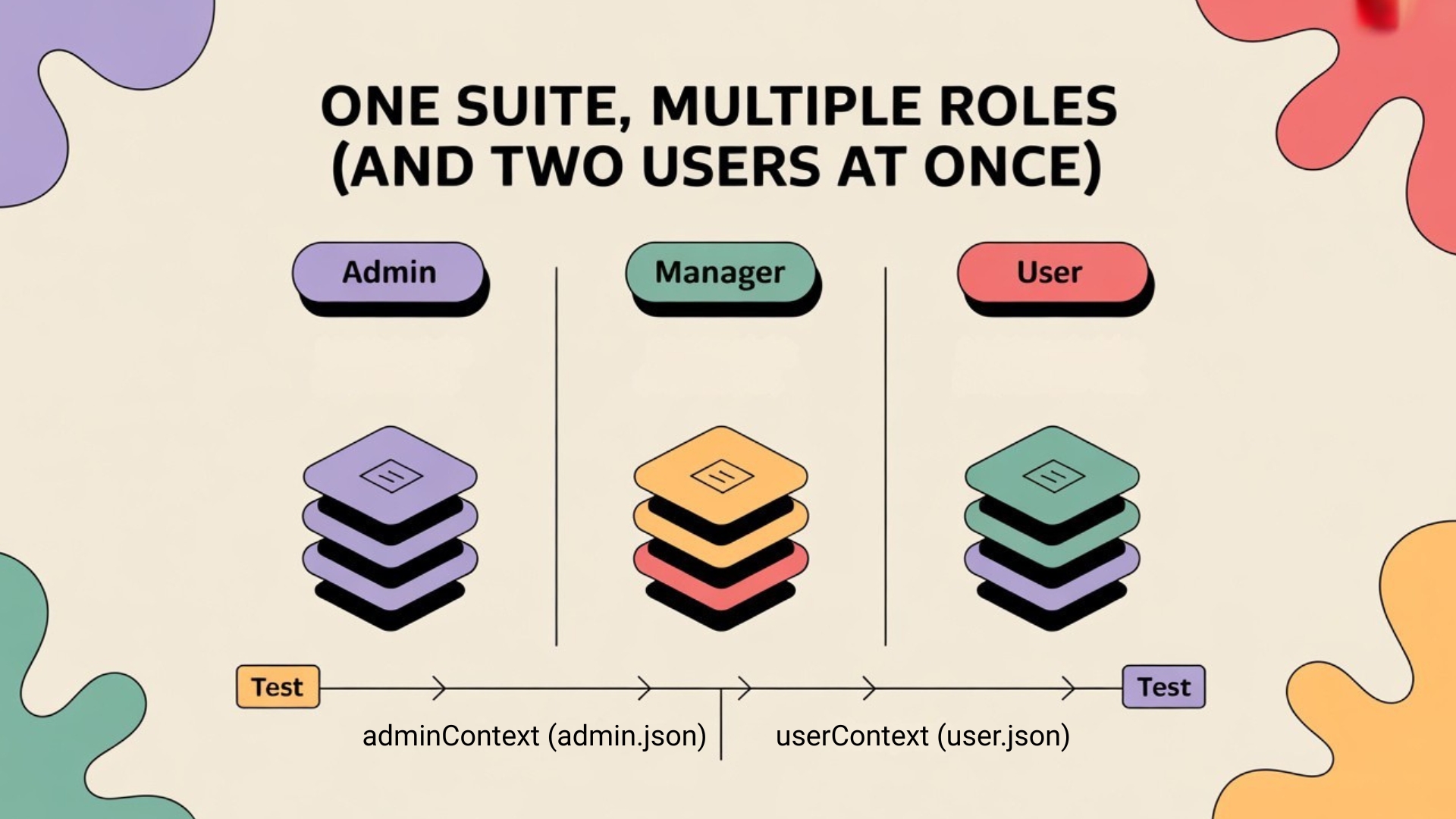
You can create multiple storage state files:
- auth/admin.json
- auth/manager.json
- auth/user.json
Then define multiple projects:
export default defineConfig({

  projects: [

    {

      name: 'admin',

      use: { storageState: 'auth/admin.json' },

    },

    {

      name: 'manager',

      use: { storageState: 'auth/manager.json' },

    },

    {

      name: 'user',

      use: { storageState: 'auth/user.json' },

    },

  ],

});
This lets you run the same tests with different roles or build separate suites.
More Insights: playwright interview questions
5. Multi-context login flows (two users at once)
Sometimes you need:
- Two users interacting (e.g., buyer and seller, teacher and student).
- Or one browser as admin, another as regular user.
Playwright supports multiple browser contexts in a single test, each with its own storage state.

Example:
import { test, expect } from '@playwright/test';

test('admin approves user request', async ({ browser }) => {

  // Admin context

  const adminContext = await browser.newContext({

    storageState: 'auth/admin.json',

  });

  const adminPage = await adminContext.newPage();


  // User context

  const userContext = await browser.newContext({

    storageState: 'auth/user.json',

  });

  const userPage = await userContext.newPage();


  // User submits a request

  await userPage.goto('https://your-app.com/requests');

  await userPage.getByRole('button', { name: 'New Request' }).click();


  // Admin approves

  await adminPage.goto('https://your-app.com/admin/requests');

  await adminPage.getByText('Pending').first().click();

  await adminPage.getByRole('button', { name: 'Approve' }).click();


  // Verify user sees approval

  await userPage.reload();

  await expect(userPage.getByText('Approved')).toBeVisible();

});
Here both “people” are logged in simultaneously with different identities.
6. Storage state in CI – huge time saver
In CI pipelines:
- Run a setup step once to create storage state files.
- Cache or store those files as artifacts.
- Use them for all subsequent parallel test runs.
This can turn:
- 200 tests with login each time → 200 logins
into - 1 login in setup + 200 tests re-using that login
Result:
- Less load on your auth system
- Faster suites
- Less flakiness from SSO/OTP flows
Explore More: manual testing interview questions
7. When to refresh storage state
Sessions expire. Tokens time out.
You may need to:
- Re-generate storage state daily or for each CI run.
- Add simple logic: if a test detects “not authenticated”, recreate the storage state.
Keep your auth creation test small and reliable, and rerun it whenever needed.
Conclusion
Playwright’s storage state feature gives you a clean, built-in way to handle login once and reuse it everywhere. With it, you can:
- Skip repetitive login steps
- Run tests for multiple roles easily
- Simulate multi-user flows with multiple contexts
- Speed up CI jobs and reduce flakiness
Instead of fighting login on every test, you design one solid login snapshot and let Playwright reuse it intelligently.
f you’re considering a playwright course online, this is exactly the kind of real-world pattern that separates “toy scripts” from CI-ready automation. Also, join our Playwright webinar: “Worried about your testing career in 2026?”—we’ll show practical workflows to grow faster with modern testing skills.
FAQs
1) What is storage state in Playwright?
Storage state is a login snapshot of cookies, local storage, and session storage that represents an authenticated browser. You log in once, save it to a file, and reuse it across tests.
2) How do I create a storage state file?
Do a full login (SSO/OTP if needed), confirm you reached the post-login page, then save the context storage state to a file (for example, auth/qa-admin.json).
3) How do I reuse storage state in my tests?
Set storageState in your Playwright project config. Then tests start already logged in and skip the login UI.
4) Can I test multiple roles like admin, manager, and user?
Yes. Create separate storage state files (example: auth/admin.json, auth/manager.json, auth/user.json) and map each one to a Playwright project.
5) Can I test two users at the same time in one test?
Yes. Create multiple browser contexts in a single test, each with its own storage state (e.g., admin context + user context) to simulate real multi-user flows.
6) How does storage state help in CI?
In CI, generate storage state once in a setup step, cache/store it, and reuse it across parallel runs. This can turn “200 tests = 200 logins” into “1 login + 200 tests,” reducing load and flakiness.
7) When should I refresh storage state?
When sessions expire or tokens time out. Regenerate storage state daily or per CI run, and keep the auth-creation test small and reliable so it can be rerun when needed.
We Also Provide Training In:
- Advanced Selenium Training
- Playwright Training
- Gen AI Training
- AWS Training
- REST API Training
- Full Stack Training
- Appium Training
- DevOps Training
- JMeter Performance Training
Author’s Bio:

Content Writer at Testleaf, specializing in SEO-driven content for test automation, software development, and cybersecurity. I turn complex technical topics into clear, engaging stories that educate, inspire, and drive digital transformation.
Ezhirkadhir Raja
Content Writer – Testleaf