

The leading test automation of all time, the Selenium framework helps teams build extensive web tests that help to guide through a broad scope of web elements, a prevalent path for locating and selecting web elements as part of automated testing efforts.
It is essential in script development (automation) to properly locate the web element. But it is always challenging to search for a valid, accurate locator in automation test development.
What is XPath in Selenium?
XPath is a locator strategy in Selenium WebDriver used to identify web elements by navigating the HTML DOM structure. It allows testers to locate elements using attributes, text values, and relationships between elements when IDs or class names are not reliable.
Key Takeaways
-
XPath helps locate elements when basic locators are unavailable.
-
Relative XPath is preferred over absolute XPath.
-
Functions like
contains(),starts-with(), andtext()make XPath dynamic. -
Avoid long or fragile XPath expressions.
-
Stable attributes improve locator reliability.
What about A Selenium IDE vs Webdriver comparison sounds to you?
Locators like ID, Name, Class and others cannot be found easily in Selenium Automation. That’s where the XPath comes into the picture and helps locate elements on the webpage. It is why XPath in Selenium can be used in HTML and XML documents.
This article on XPath in Selenium discusses all the necessary to understand and excel in XPath.
What Is XPath In Selenium?
In Selenium automation, if the elements are not found by the general locators like id, class, name, etc., then XPath is used to find an element on the web page.
It is a syntax or language which makes a difference in finding elements on a webpage using XML path expression. XPath is a Selenium technique that guides a web page’s HTML structure.
XPath is a syntax for finding elements on web pages, and XPath in Selenium can be used on HTML and XML documents. More straightforward Selenium locators search for details using tags or CSS class names. Yet they may need to be more sufficient to select all DOM elements of an HTML document.
By using XPath, Selenium users can search for a page element in a more dynamic way. In addition, this capability allows testers to work with locators, making them more advantageous.
XPath in Selenium is just one of many things you need to know about the platform. Explore the following resources to enhance your Selenium skillset.
XPath in Selenium can coordinate all ranges of syntax which helps in providing a great source of content.
Xpath Locators
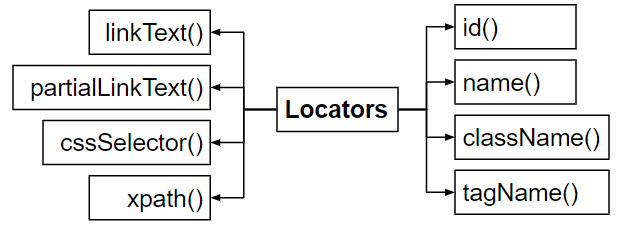
CSS path – It locates elements which have no name, class or ID.
Link test – Will find the element by the text of the link.
Name – By searching the element with the name of it.
Class Name – Finding the element by the class name.
ID – Finding the element by the ID name.
XPath – XPath is required to find the dynamic element and pass it over between various web page elements.
Types Of Xpath
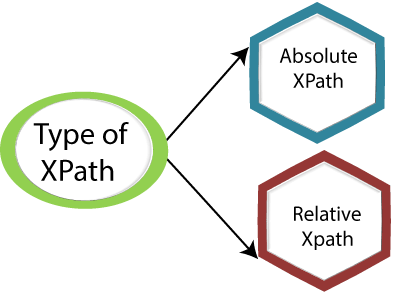
1) Absolute Xpath
2) Relative Xpath
Absolute Xpath
Do you know that Absolute Xpath finds its direct way to the element? Well, yes, it is. The primary factor of Xpath is that it always begins with the forward slash (/) to determine the composition of the root node.
The only disadvantage is that if there is a slight change in the path, the element will fail without a second thought.
Relative Xpath
It is not similar to Relative Xpath; it begins with the double forward slash (//), and it can be found on any page on the website. The path only begins from middle of the HTML DOM structure.
It can be started even in the middle of the HTML DOM structure; there is no need to write from the beginning.
How To Locate Web Elements Using XPath In Selenium?
Special characters like double slash “//” and “@” help us locate and select the desired node/element. Apart from the double slash and “at”, Selenium provides other variants of syntax elements to find the web elements which XPath uses.
Apart from the syntax, XPath in Selenium produces further advanced concepts. Moreover, web elements can be found at a specified position if the locator’s XPath has resulted in multiple elements called Predicates.
Let’s discuss the six ways of using Xpath in Selenium Webdriver
Contains ()
Contains() is a procedure used in an XPath expression which can be used for the value to attribute changes dynamically.
This feature can discover the element with limited text by identifying the element and just using the attribute’s partial text value.
The absolute value of ‘id’ is ‘FirstName’ but only using the restricted value’ Name.’
Starts With Function
This element helps to find the element which pays an attribute changes its value by clicking refresh or any operation on the page. In start-with-function, the beginning of the text will help to find the element by changing the quality dynamically. Also, find the element which pays its attribute whose value is static.
Id = ‘’startwithfunction13’’
Id = ‘’startwithfunction249’’
Id = ‘’startwithfunction4568’’
Did you witness the above example? The initial text remains the same.
Basic Xpath
Basic XPath expression selects its list of nodes or nodes from the XML document based on attributes like ID, Name, Classname, etc.,
OR & AND expression
Two sets of conditions have been used in the OR expression; either the first or second condition should be accurate. It applies only if any of the conditions are true or can be both. This means that any one state should be true to find the element.
This particular XPath expression identifies its elements, whether single or both conditions are proper.
Spotlight, both elements, as the ‘Name 1’ element, have attribute ‘id’ and the ‘Name 2’ element has attribute name.
On the contrary, AND expression has two conditions to be used. Both of the conditions should be suitable for finding the element. Thus, it fails to locate the part if any one condition is false.
Text ()
The text() method is used in XPath whenever a text is defined in an HTML tag and expects to identify that element via text. This comes in handy when the other attribute changes its value with no definite attribute value used with Starts-with or Contains.
Starts with ()
The Starts-With() method is equivalent to the Contains() process. It is helpful in the case of web elements whose attribute values can change dynamically. In the Starts-With method, the attribute’s text’s starting value is used to locate the element.
XPath vs CSS Selector in Selenium
| Feature | XPath | CSS Selector |
|---|---|---|
| Locate by visible text | Supported | Not supported |
| Speed | Slightly slower | Usually faster |
| DOM navigation | Supports parent and ancestor traversal | Limited navigation |
| Syntax readability | More complex | Cleaner and shorter |
| Use case | Dynamic or complex locators | Simple element identification |
Best Practices for Writing XPath in Selenium
To build reliable automation tests, it is important to write stable XPath locators.
Follow these best practices:
-
Prefer relative XPath instead of absolute XPath.
-
Avoid using index-based XPath whenever possible.
-
Use stable attributes such as
id,name,data-testid, oraria-label. -
Use functions like
contains()andstarts-with()for dynamic attributes. -
Use
normalize-space()when text contains extra spaces.
Why XPath Is Important for Selenium Automation Testing
In many modern web applications, element IDs and class names change frequently. XPath provides the flexibility needed to locate elements using multiple strategies.
For this reason, understanding XPath is a critical skill for engineers working in Selenium automation testing and building reliable UI automation frameworks.
Common XPath Mistakes in Selenium
Many beginners create unstable locators that break frequently.
Common mistakes include:
-
Using very long absolute XPath
-
Relying on element indexes
-
Ignoring dynamic attributes
-
Not using explicit waits
A well-written XPath locator should be short, stable, and easy to maintain.
Conclusion
XPath is one of the most powerful locator strategies in Selenium WebDriver. It allows testers to identify elements even when traditional locators such as ID or class names are unavailable.
However, writing efficient XPath expressions requires understanding DOM structure and following best practices. By using relative XPath, dynamic functions, and stable attributes, testers can create automation scripts that remain reliable even when the UI evolves.
Mastering XPath is an essential skill for building stable and maintainable Selenium automation frameworks.
FAQs
What is XPath in Selenium?
XPath in Selenium is a locator strategy used to identify web elements by navigating the HTML DOM structure using attributes, text values, and element relationships.
Why is XPath used in Selenium WebDriver?
XPath is used when elements do not have stable IDs or class names. It helps locate elements using attributes, visible text, and parent-child relationships in the DOM.
What are the types of XPath in Selenium?
There are two types of XPath: Absolute XPath and Relative XPath. Absolute XPath starts from the root of the DOM, while Relative XPath starts from any element and is more stable.
Which is better: XPath or CSS Selector?
CSS selectors are generally faster and simpler, but XPath is more powerful when locating elements using visible text or complex DOM relationships.
What is dynamic XPath in Selenium?
Dynamic XPath uses functions like contains(), starts-with(), and text() to locate elements when attributes change frequently in modern web applications.
Why does XPath fail in Selenium tests?
XPath may fail due to dynamic element attributes, DOM changes, incorrect locator syntax, or timing issues where elements are not yet loaded in the browser.
What are best practices for writing XPath in Selenium?
Use relative XPath, avoid long absolute paths, prefer stable attributes, and use functions like contains() or normalize-space() to make locators more reliable.
We Also Provide Training In:
- Advanced Selenium Training
- Playwright Training
- Gen AI Training
- AWS Training
- REST API Training
- Full Stack Training
- Appium Training
- DevOps Training
- JMeter Performance Training
Author’s Bio:

As CEO of TestLeaf, I’m dedicated to transforming software testing by empowering individuals with real-world skills and advanced technology. With 24+ years in software engineering, I lead our mission to shape local talent into global software professionals. Join us in redefining the future of test engineering and making a lasting impact in the tech world.
Babu Manickam
CEO – Testleaf